Image Manipulation
The process of creating, managing, and customizing images used to run containers in Docker.
Create a Image
Create Dockerfile
Create a new file named Dockerfile inside that directory. A Dockerfile is a collection of instructions that, once processed by the daemon, results in an image
FROM ubuntu:latest

EXPOSE 80

RUN apt-get update && \
    apt-get install nginx -y && \
    apt-get clean && rm -rf /var/lib/apt/lists/*

CMD ["nginx", "-g", "daemon off;"]
-
FROM: instruction sets the base image for your resultant image. -> By setting
ubuntu:latestas the base image here, you get all the goodness of Ubuntu already available in your custom image -
EXPOSE: instruction is used to indicate the port that needs to be published. -> Here it works like a documentation for someone who's trying to run a container using your image.
-
RUN: instruction executes a command inside the container shell. The
RUNinstructions here are written inshellform. These can also be written inexecform -> Run those simple Ubuntu commands. -
CMD: instruction sets the default command for your image. This instruction is written in
execform or inshellform. -> Running NGINX as a single process inside containers.
Build image
To perform an image build, the daemon needs two very specific pieces of information.
These are the name of the Dockerfile and the build context.
The image related commands can be issued using the following syntax:
docker image <command> <options>
To build an image using the Dockerfile you just wrote, open up your terminal inside the current directory and execute the following command:
docker image build .

# Sending build context to Docker daemon  3.584kB
# Step 1/4 : FROM ubuntu:latest
#  ---> d70eaf7277ea
# Step 2/4 : EXPOSE 80
#  ---> Running in 9eae86582ec7
# Removing intermediate container 9eae86582ec7
#  ---> 8235bd799a56
# Step 3/4 : RUN apt-get update &&     apt-get install nginx -y &&     apt-get clean && rm -rf /var/lib/apt/lists/*
#  ---> Running in a44725cbb3fa
### LONG INSTALLATION STUFF GOES HERE ###
# Removing intermediate container a44725cbb3fa
#  ---> 3066bd20292d
# Step 4/4 : CMD ["nginx", "-g", "daemon off;"]
#  ---> Running in 4792e4691660
# Removing intermediate container 4792e4691660
#  ---> 3199372aa3fc
# Successfully built 3199372aa3fc
docker image buildis the command for building the image. The daemon finds any file namedDockerfilewithin the context.- The
.at the end sets the context for this build. The context means the directory accessible by the daemon during the build process.
To run a container using this image, run:
docker container run --rm --detach --name custom-nginx-packaged --publish 8080:80 3199372aa3fc

# ec09d4e1f70c903c3b954c8d7958421cdd1ae3d079b57f929e44131fbf8069a0

docker container ls

# CONTAINER ID        IMAGE               COMMAND                  CREATED             STATUS              PORTS                  NAMES
# ec09d4e1f70c        3199372aa3fc        "nginx -g 'daemon of…"   23 seconds ago      Up 22 seconds       0.0.0.0:8080->80/tcp   custom-nginx-packaged
Tag docker Image
You can assign custom identifiers to your images instead of relying on the randomly generated ID.
In case of an image, it's called tagging instead of naming.
--tag <image repository>:<image tag>
For example:
docker image build --tag custom-nginx:packaged .

# Sending build context to Docker daemon  1.055MB
# Step 1/4 : FROM ubuntu:latest
#  ---> f63181f19b2f
# Step 2/4 : EXPOSE 80
#  ---> Running in 53ab370b9efc
# Removing intermediate container 53ab370b9efc
#  ---> 6d6460a74447
# Step 3/4 : RUN apt-get update &&     apt-get install nginx -y &&     apt-get clean && rm -rf /var/lib/apt/lists/*
#  ---> Running in b4951b6b48bb
### LONG INSTALLATION STUFF GOES HERE ###
# Removing intermediate container b4951b6b48bb
#  ---> fdc6cdd8925a
# Step 4/4 : CMD ["nginx", "-g", "daemon off;"]
#  ---> Running in 3bdbd2af4f0e
# Removing intermediate container 3bdbd2af4f0e
#  ---> f8837621b99d
# Successfully built f8837621b99d
# Successfully tagged custom-nginx:packaged
In cases where you forgot to tag an image during build time, or maybe you want to change the tag, you can use the image tag command to do that:
docker image tag <image id> <image repository>:<image tag>

## or ##

docker image tag <image repository>:<image tag> <new image repository>:<new image tag>
List and Remove Images
Use container ls to list all the images in your local system:
docker image ls

# REPOSITORY     TAG        IMAGE ID       CREATED         SIZE
# <none>         <none>     3199372aa3fc   7 seconds ago   132MB
# custom-nginx   packaged   f8837621b99d   4 minutes ago   132MB
Use image rm to delete the image. The identifier can be the image ID or image repository. If you use the repository, you'll have to identify the tag as well
docker image rm <image identifier>
For example:
docker image rm custom-nginx:packaged

# Untagged: custom-nginx:packaged
# Deleted: sha256:f8837621b99d3388a9e78d9ce49fbb773017f770eea80470fb85e0052beae242
# Deleted: sha256:fdc6cdd8925ac25b9e0ed1c8539f96ad89ba1b21793d061e2349b62dd517dadf
# Deleted: sha256:c20e4aa46615fe512a4133089a5cd66f9b7da76366c96548790d5bf865bd49c4
# Deleted: sha256:6d6460a744475a357a2b631a4098aa1862d04510f3625feb316358536fcd8641
Use image prune to clean up all un-tagged dangling images
docker image prune --force

# Deleted Images:
# deleted: sha256:ba9558bdf2beda81b9acc652ce4931a85f0fc7f69dbc91b4efc4561ef7378aff
# deleted: sha256:ad9cc3ff27f0d192f8fa5fadebf813537e02e6ad472f6536847c4de183c02c81
# deleted: sha256:f1e9b82068d43c1bb04ff3e4f0085b9f8903a12b27196df7f1145aa9296c85e7
# deleted: sha256:ec16024aa036172544908ec4e5f842627d04ef99ee9b8d9aaa26b9c2a4b52baa

# Total reclaimed space: 59.19MB
The --force or -f option skips any confirmation questions.
The --all or -a option to remove all cached images in your local registry.
Layers of Docker Image
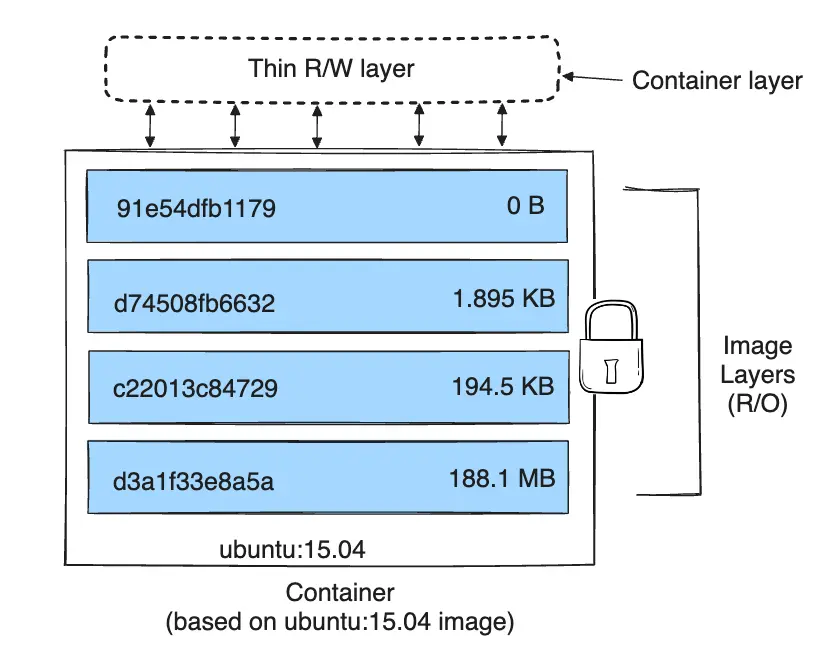
To visualize the many layers of an image, you can use the image history command.
docker image history custom-nginx:packaged

# IMAGE               CREATED             CREATED BY                                      SIZE                COMMENT
# 7f16387f7307        5 minutes ago       /bin/sh -c #(nop)  CMD ["nginx" "-g" "daemon…   0B
# 587c805fe8df        5 minutes ago       /bin/sh -c apt-get update &&     apt-get ins…   60MB
# 6fe4e51e35c1        6 minutes ago       /bin/sh -c #(nop)  EXPOSE 80                    0B
# d70eaf7277ea        17 hours ago        /bin/sh -c #(nop)  CMD ["/bin/bash"]            0B
# <missing>           17 hours ago        /bin/sh -c mkdir -p /run/systemd && echo 'do…   7B
# <missing>           17 hours ago        /bin/sh -c [ -z "$(apt-get indextargets)" ]     0B
# <missing>           17 hours ago        /bin/sh -c set -xe   && echo '#!/bin/sh' > /…   811B
# <missing>           17 hours ago        /bin/sh -c #(nop) ADD file:435d9776fdd3a1834…   72.9MB
The image comprises of many read-only layers, each recording a new set of changes to the state triggered by certain instructions.
When you start a container using an image, you get a new writable layer on top of the other layers.
This layering phenomenon that happens every time you work with Docker has been made possible by a union file system.
By utilizing this concept, Docker can avoid data duplication and can use previously created layers as a cache for later builds. This results in compact, efficient images that can be used everywhere.
Build NGINX from Source
FROM ubuntu:latest

RUN apt-get update && \
    apt-get install build-essential\
                    libpcre3 \
                    libpcre3-dev \
                    zlib1g \
                    zlib1g-dev \
                    libssl1.1 \
                    libssl-dev \
                    -y && \
    apt-get clean && rm -rf /var/lib/apt/lists/*

COPY nginx-1.19.2.tar.gz .

RUN tar -xvf nginx-1.19.2.tar.gz && rm nginx-1.19.2.tar.gz

RUN cd nginx-1.19.2 && \
    ./configure \
        --sbin-path=/usr/bin/nginx \
        --conf-path=/etc/nginx/nginx.conf \
        --error-log-path=/var/log/nginx/error.log \
        --http-log-path=/var/log/nginx/access.log \
        --with-pcre \
        --pid-path=/var/run/nginx.pid \
        --with-http_ssl_module && \
    make && make install

RUN rm -rf /nginx-1.19.2

CMD ["nginx", "-g", "daemon off;"]
This can be done in 7 steps:
-
Get a good base image for building the application
- The
FROMinstruction sets Ubuntu as the base image making an ideal environment for building any application.
- The
-
Install necessary build dependencies on the base image.
- The
RUNinstruction installs standard packages necessary for building NGINX from source.
- The
-
Copy the source file inside the image.
- The
COPYinstruction is responsible for copying the thenginx-1.19.2.tar.gzfile inside the image.
- The
-
Extract the contents of the archive and get rid of it.
- The
RUNinstruction here extracts the contents from the archive using tar and gets rid of it afterwards.
- The
-
Configure the build, compile and install the program using the make tool.
- The archive file contains a directory called
nginx-1.19.2containing the source code. So in the nextRUNinstruction, you'll have to cd inside that directory and perform the build process.
- The archive file contains a directory called
-
Get rid of the extracted source code.
- Once the build and installation is complete, you continue to use
RUNinstruction to remove thenginx-1.19.2directory usingrmcommand.
- Once the build and installation is complete, you continue to use
-
Run nginx executable.
- On the final step you start NGINX in single process by using
CMDintruction like before.
- On the final step you start NGINX in single process by using
Now we can build an image:
docker image build --tag custom-nginx:built .

# Step 1/7 : FROM ubuntu:latest
#  ---> d70eaf7277ea
# Step 2/7 : RUN apt-get update &&     apt-get install build-essential                    libpcre3                     libpcre3-dev                     zlib1g                     zlib1g-dev                     libssl-dev                     -y &&     apt-get clean && rm -rf /var/lib/apt/lists/*
#  ---> Running in 2d0aa912ea47
### LONG INSTALLATION STUFF GOES HERE ###
# Removing intermediate container 2d0aa912ea47
#  ---> cbe1ced3da11
# Step 3/7 : COPY nginx-1.19.2.tar.gz .
#  ---> 7202902edf3f
# Step 4/7 : RUN tar -xvf nginx-1.19.2.tar.gz && rm nginx-1.19.2.tar.gz
# ---> Running in 4a4a95643020
### LONG EXTRACTION STUFF GOES HERE ###
# Removing intermediate container 4a4a95643020
#  ---> f9dec072d6d6
# Step 5/7 : RUN cd nginx-1.19.2 &&     ./configure         --sbin-path=/usr/bin/nginx         --conf-path=/etc/nginx/nginx.conf         --error-log-path=/var/log/nginx/error.log         --http-log-path=/var/log/nginx/access.log         --with-pcre         --pid-path=/var/run/nginx.pid         --with-http_ssl_module &&     make && make install
#  ---> Running in b07ba12f921e
### LONG CONFIGURATION AND BUILD STUFF GOES HERE ###
# Removing intermediate container b07ba12f921e
#  ---> 5a877edafd8b
# Step 6/7 : RUN rm -rf /nginx-1.19.2
#  ---> Running in 947e1d9ba828
# Removing intermediate container 947e1d9ba828
#  ---> a7702dc7abb7
# Step 7/7 : CMD ["nginx", "-g", "daemon off;"]
#  ---> Running in 3110c7fdbd57
# Removing intermediate container 3110c7fdbd57
#  ---> eae55f7369d3
# Successfully built eae55f7369d3
# Successfully tagged custom-nginx:built
There are some places where we can make improvements:
-
Instead of hard coding the filename, you can create an argument using the
ARGinstruction. -
Instead of downloading the archive manually, you can let the daemon download the file from the internet during the build process using
ADDinstruction.
It isn't recommended to use build arguments for passing secrets such as user credentials, API tokens, etc. Build arguments are visible in the docker history command and in max mode provenance attestations.
The Dockerfile will be updated as follow:
FROM ubuntu:latest

RUN apt-get update && \
    apt-get install build-essential\
                    libpcre3 \
                    libpcre3-dev \
                    zlib1g \
                    zlib1g-dev \
                    libssl1.1 \
                    libssl-dev \
                    -y && \
    apt-get clean && rm -rf /var/lib/apt/lists/*

ARG FILENAME="nginx-1.19.2"
ARG EXTENSION="tar.gz"

ADD https://nginx.org/download/${FILENAME}.${EXTENSION} .

RUN tar -xvf ${FILENAME}.${EXTENSION} && rm ${FILENAME}.${EXTENSION}

RUN cd ${FILENAME} && \
    ./configure \
        --sbin-path=/usr/bin/nginx \
        --conf-path=/etc/nginx/nginx.conf \
        --error-log-path=/var/log/nginx/error.log \
        --http-log-path=/var/log/nginx/access.log \
        --with-pcre \
        --pid-path=/var/run/nginx.pid \
        --with-http_ssl_module && \
    make && make install

RUN rm -rf /${FILENAME}}

CMD ["nginx", "-g", "daemon off;"]
Optimize Docker Image
The RUN instruction installs a lot of stuff. Although these packages are necessary for building NGINX from source, they are not necessary for running it, only two are necessary for running NGINX. These are libpcre3 and zlib1g.
So a better idea would be to uninstall the other packages once the build process is done.
The updated Dockerfile will be as follow:
FROM ubuntu:latest

EXPOSE 80

ARG FILENAME="nginx-1.19.2"
ARG EXTENSION="tar.gz"

ADD https://nginx.org/download/${FILENAME}.${EXTENSION} .

RUN apt-get update && \
    apt-get install build-essential \
                    libpcre3 \
                    libpcre3-dev \
                    zlib1g \
                    zlib1g-dev \
                    libssl1.1 \
                    libssl-dev \
                    -y && \
    tar -xvf ${FILENAME}.${EXTENSION} && rm ${FILENAME}.${EXTENSION} && \
    cd ${FILENAME} && \
    ./configure \
        --sbin-path=/usr/bin/nginx \
        --conf-path=/etc/nginx/nginx.conf \
        --error-log-path=/var/log/nginx/error.log \
        --http-log-path=/var/log/nginx/access.log \
        --with-pcre \
        --pid-path=/var/run/nginx.pid \
        --with-http_ssl_module && \
    make && make install && \
    cd / && rm -rfv /${FILENAME} && \
    apt-get remove build-essential \
                    libpcre3-dev \
                    zlib1g-dev \
                    libssl-dev \
                    -y && \
    apt-get autoremove -y && \
    apt-get clean && rm -rf /var/lib/apt/lists/*

CMD ["nginx", "-g", "daemon off;"]
By run those commands, the unnecessary packages are being uninstalled and cache cleared.
If you install packages and then remove them in separate RUN instructions, they'll live in separate layers of the image.
Although the final image will not have the removed packages, their size will still be added to the final image since they exist in one of the layers consisting the image.
So make sure you make these kind of changes on a single layer.
Embracing Alpine Linux
Alpine is lightweight, secure and is a much better fit for creating containers than the other distributions.
You can update Dockerfile using Alpine as follow:
FROM alpine:latest

EXPOSE 80

ARG FILENAME="nginx-1.19.2"
ARG EXTENSION="tar.gz"

ADD https://nginx.org/download/${FILENAME}.${EXTENSION} .

RUN apk add --no-cache pcre zlib && \
    apk add --no-cache \
            --virtual .build-deps \
            build-base \
            pcre-dev \
            zlib-dev \
            openssl-dev && \
    tar -xvf ${FILENAME}.${EXTENSION} && rm ${FILENAME}.${EXTENSION} && \
    cd ${FILENAME} && \
    ./configure \
        --sbin-path=/usr/bin/nginx \
        --conf-path=/etc/nginx/nginx.conf \
        --error-log-path=/var/log/nginx/error.log \
        --http-log-path=/var/log/nginx/access.log \
        --with-pcre \
        --pid-path=/var/run/nginx.pid \
        --with-http_ssl_module && \
    make && make install && \
    cd / && rm -rfv /${FILENAME} && \
    apk del .build-deps

CMD ["nginx", "-g", "daemon off;"]
-
apk addis as same asapt-get installin ubuntu, using for installing packages. -
apk delis as same asapt-get removein ubuntu, using for uninstalling packages. -
The
--no-cacheoption means that the downloaded package won't be cached. -
The
--virtualoption for the apk add command is used for bundling a bunch of packages into a single virtual package for easier management.